How to Manage Tasks, Attendance and Payroll in One Workspace
Manage tasks, attendance, leave and India payroll in one workspace with Automate Teams. Assign work, track attendance and simplify payroll.
Automate Business Team ·
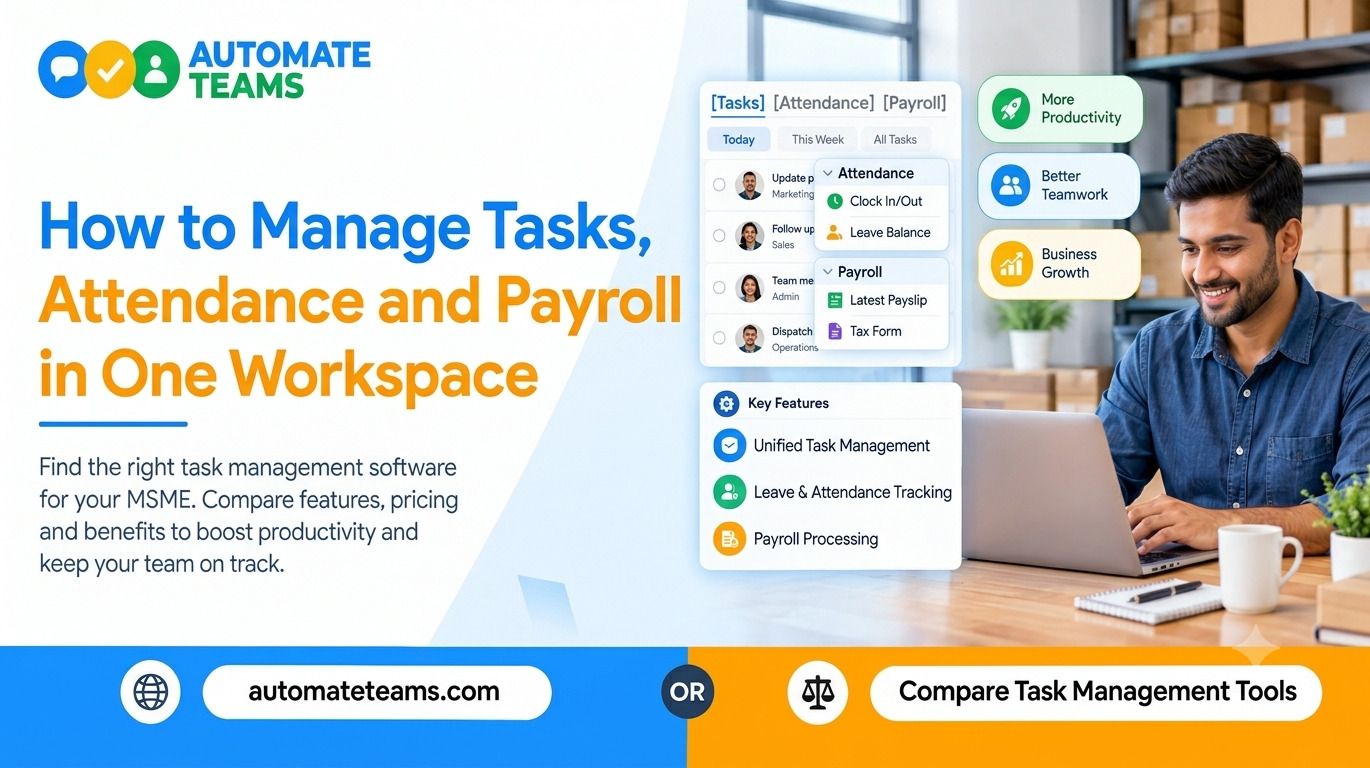
You can manage tasks, attendance and payroll in one workspace by using the Automate Teams App, which connects team chat, task tracking, leave, attendance and India payroll to a single employee record. Work is assigned from conversations, attendance flows into payroll, and reminders go out on WhatsApp or email automatically. This removes the need to juggle separate tools and spreadsheets.
This guide walks you through the process step by step. You will learn how to set up tasks, track attendance, approve leave, run payroll and train new joiners in one place. You will also find tips on choosing a plan and answers to common questions.
Why Separate Tools Slow Down Your Business
Many small businesses run on a patchwork of tools. Tasks sit in one app, attendance in a paper register, leave in a spreadsheet and payroll in accounting software. Each tool holds part of the story, and none of them talks to the others.
This creates repeated work. Someone copies attendance into a payroll sheet every month. A manager checks three places to learn who is present, who is on leave and who is late on a task.
A connected workspace solves this by keeping people and work together. When tasks, attendance and payroll share one employee record, you enter data once and use it everywhere. That saves time and cuts errors at month end.
- Step One: Turn Conversations Into Tasks
Start with how work begins. Most requests arrive in a chat, not in a task list. Automate Teams App keeps team channels, direct messages and threads next to the work, so context is never lost.
When a message needs action, convert it into a task. Add an owner, a deadline, a priority and a checklist. Sub-tasks help break larger jobs into clear steps.
The Teams App also lets you describe a task in a prompt or voice note, and it drafts the task, deadline and priority for you. This speeds up assignment, especially for busy owners. Everyone can then see who is responsible and what comes next. - Step Two: Keep Work on Schedule With Reminders
Assigning a task is only half the job. The other half is making sure it gets done without constant follow-ups. Automate Teams App sends automatic reminders on WhatsApp or email, so people are nudged where they already look.
For routine work, use recurring tasks. Daily stock counts, weekly approvals and monthly GST invoice collection can be set up once and repeated on schedule. Reminders follow each cycle automatically.
Managers can then review progress without chasing updates. Overdue tasks, work due today and work completed this week appear in clear views. Task activity summaries and reports help you spot delays early and plan the next step. - Step Three: Track Attendance Without Registers
Paper registers are slow and easy to get wrong. Automate Teams App replaces them with digital attendance that works for office and field teams. Staff can clock in with face recognition, and a geo-fence confirms they are at the right location.
The dashboard shows how many people are present, late, on leave or absent today. If you run more than one branch, you can see all of them in one view. Staff who forget to punch out can raise a regularization request for review.
Shifts, rosters and holidays are set up in the same workspace. This gives HR and managers a clear picture of who is working and when. It also prepares clean data for the payroll step that follows. - Step Four: Handle Leave Requests in One Place
Leave approvals often cause delays and confusion. In Automate Teams App, employees apply for leave from their phone. Managers see each request and approve or reject it with one tap.
Approved leave updates the attendance record automatically. You do not need to update a second sheet or tell the HR team separately. The same record then feeds payroll, so deductions and paid leave stay accurate.
This also helps managers plan work. When you see that a team member is on leave tomorrow, you can reassign a task before it becomes overdue. Tasks and leave sit side by side, which is the main benefit of a single workspace. - Step Five: Run India Payroll From Attendance Data
Payroll is where disconnected tools cause the most pain. Teams often rebuild attendance records by hand before every salary run. Automate Teams removes that step because attendance, shifts, holidays and approved leave feed directly into payroll.
EPF, ESI and TDS are calculated automatically. The payroll screen shows the employee count, sync status and the total payout for the month. Once you have checked it, you can process payroll and generate payslips from the same workspace.
Before locking the month, the system shows whether attendance has any mismatches. A clean sync means fewer corrections and fewer questions from staff. For MSMEs in India, this makes month-end payroll faster and less stressful. - Step Six: Train New Joiners With a Built-In LMS
Onboarding is another area where managers lose time. Automate Teams App includes a built-in learning module so you can assign training inside the same workspace. A safety induction course, for example, can be tracked staff by staff.
Managers can see how many employees have finished a course. New joiners can complete training on mobile, from wherever they are. This keeps onboarding moving without extra reminders or manual tracking.
Because training sits in the same system as tasks and attendance, it fits naturally into daily work. You can assign a course, track completion and follow up only where needed. One employee record connects all of it.
Who Benefits Most From a One-Workspace Setup
The setup suits different roles in different ways. Owners and operations leaders review pending work, delegate across departments and coordinate branches. HR and finance teams keep attendance, leave approvals, salary runs and payslips connected.
Employees and field staff check tasks, mark attendance, apply for leave and complete training on mobile. The Automate Teams App runs on web, Android and iOS. Roles and permissions control who can see and manage each part.
This makes it a good fit for MSMEs, multi-branch businesses and teams with field staff. It also suits growing companies that have outgrown spreadsheets. Industry pages cover use cases such as IT and software, healthcare, finance and banking, and retail and e-commerce.
Choosing a Plan and Getting Started
Cost matters when you choose software. Every Automate Teams plan includes unlimited workspace members, so you are not charged per user. What changes between plans is the number of active projects, shared storage and how much of the HR, payroll and learning suite is included.
Team chat starts on the Growth plan. Leave, attendance and India payroll are part of the Scale and Enterprise plans. Check the Automate Teams pricing page to match a plan to your needs.
You can begin with a 7-day free trial or book a demo to see it with your own workflow. Start with tasks, then add attendance, leave and payroll as your team gets comfortable. This phased approach keeps the change easy for everyone.
Frequently Asked Questions
- Can I manage tasks, attendance and payroll in one workspace?
Yes. Automate Teams combines task management, team chat, leave, attendance, India payroll and a learning module in one workspace, linked through a single employee record. - Can attendance data be used for payroll?
Yes. Attendance, shifts, holidays and approved leave feed into payroll, so you do not rebuild the records each month. - Does Automate Teams calculate EPF, ESI and TDS?
Yes. These are calculated automatically as part of the payroll run. - Can employees use it on mobile?
Yes. It is available on web, Android and iOS, so staff can update tasks, mark attendance and apply for leave from anywhere. - Do I pay per user?
No. Every plan includes unlimited workspace members. Plans differ in active projects, storage and the HR, payroll and learning features included. - Is the Teams inbox the same as Automate Chats?
No. The Teams inbox is for conversations inside your business. Automate Chats is the shared WhatsApp Business API inbox for customer conversations.
Final Thoughts
Managing tasks, attendance and payroll in one workspace saves time because data is entered once and used everywhere. The Automate Teams App connects each step, from the first message to the final payslip. The result is fewer follow-ups, cleaner records and a clearer view of progress. Ready to try it? Start the 7-day free trial or book a demo of Automate Teams.